
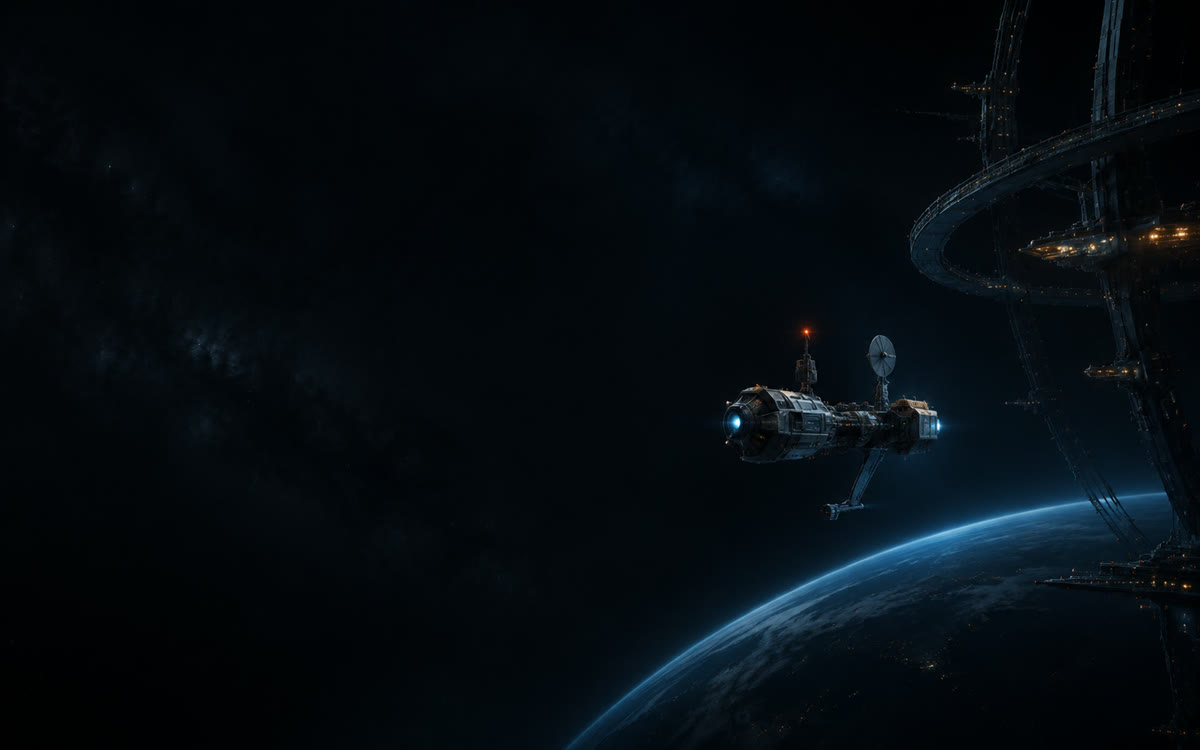
When you spend hours in an AI desktop app, the default interface may be dependable without being ideal for every workspace. Some people want less visual stimulation while coding late at night. Others use a familiar landscape to distinguish one work environment from another. Paletide brings theme selection, image import, and restoration of the official appearance into a native macOS window. You do not need to edit CSS by hand or learn Terminal commands first.
Paletide is an independent third-party tool and is not an official OpenAI product. It does not modify the official
.app,app.asar, or code signature. Codex, ChatGPT, and related names belong to their respective owners.
What you need before you begin
First, install and launch a supported Codex or ChatGPT desktop app for macOS at least once, then complete that official app’s initial setup. Next, install Paletide, enter a valid license code, and install the local theme component. Initial activation requires an internet connection, while theme artwork import and analysis take place on the current Mac.
Applying a theme may require the official desktop app to restart. Send or save anything that is still sitting unsent in the input box before you continue. If an important task is running, wait until it finishes so that a restart does not interrupt the current context.
Option 1: Choose a bundled theme
Open Paletide’s theme library to find six original themes included with the app: Cloud Nest Otter, Orbital Harbor, Ring-Tide Vista, Misty Pine Valley, Deep-Sea Fireflies, and Paper Atelier. They lean toward playful, technological, expansive, natural, tranquil, and handcrafted moods. They do more than change a single accent color.
Every theme contains three pieces of artwork: a home hero image, a home background, and a task-page background. After selecting a theme, inspect both the home and task previews. Make sure the text, project list, and input area remain clear before you apply it. Paletide preserves the native sidebar, cards, project picker, and input controls; the artwork is only the visual layer behind the workspace.
Option 2: Import your own images
When you choose a local image in the importer, Paletide initially places it in all three artwork slots. You can then replace the hero, home background, and task background separately. For example, use a panoramic illustration in the hero and a low-contrast texture behind the task page. Each slot has a live preview in the relevant aspect ratio, and you can drag the artwork to control which area remains visible.
Cropping is non-destructive. Paletide records the focal point and fits the image to the window using behavior similar to CSS cover; it does not rewrite the original file. For readable text, choose artwork with a clear subject, enough space around the edges, and no large blocks of embedded text. Portraits, brand marks, and images of film or television characters can involve copyright, likeness, and trademark rights. Import only work you created or have permission to use.
How to tell whether a theme works day to day
Do not judge a theme only in the largest window size. Test a wide and a narrow window, then open both the home screen and a task. Check three things in particular: whether detailed textures interfere with content on the left, whether the input boundary remains distinct, and whether the main subject survives the crop. Test light artwork in dark appearance and dark artwork in light appearance as well.
If a newly applied theme does not appear, first confirm that the local component reports a healthy state. Then quit and reopen the supported official desktop app. If an app update changes the interface structure, pause the theme and wait for a compatible Paletide update instead of repeatedly altering files inside the official app.
Pause a theme or restore the official appearance
Use “Pause Theme” when presenting, recording your screen, or investigating an interface issue. Choose “Restore Official Appearance” when you want to return fully to the default experience. Restoration stops the active theme session and may reopen the official desktop app normally. As with theme switching, deal with any unsent input first.
The value of a theme is not how much decoration it can fit on screen. A useful theme makes a high-traffic workspace easier to recognize and better suited to your lighting and concentration habits. Start with a bundled theme, use it for a day or two, and only then import artwork based on how the interface actually feels to read. That usually works better than adding many visual elements at once.